
Smart TVs are better integrated than ever, with many of the features you want, and in 2025, you can still find yourself asking the same question: How do I get to YouTube on my Smart TV?
This will be based on which TV brand you have, the operating system of your TV, and whether the app is installed or not. Here, you will get to know how to use YouTube on all major TVs, how to log in safely, how to resolve common issues and even how to use casting in case the app is not provided.
This tutorial will assist you in setting up YouTube in a matter of a few minutes, regardless of whether your screen is a brand new OLED or an older version.
Quick Checklist Before Accessing YouTube on Your Smart TV
Before opening or installing the YouTube app, make sure these essentials are ready:
- Internet Speed: At least 5 Mbps for HD, 20 Mbps for 4K content.
- Latest Firmware: Updated TV software ensures smooth performance.
- Google Account: Optional, but recommended for syncing subscriptions.
- Working Remote or Smartphone: Needed for navigation or casting.
A quick check saves time and prevents common errors like failed installations or buffering during playback.
Install the YouTube App on Different Smart TV Platforms
If your TV doesn’t show YouTube on the home screen, don’t panic — installation is simple. Here’s how to do it for major platforms in 2025:
- Android TV / Google TV: Home → Play Store → Search “YouTube” → Install.
- Samsung (Tizen): Home → Apps → Search “YouTube” → Install.
- LG (webOS): Home → Content Store → Search “YouTube” → Install.
- Roku TV: Home → Streaming Channels → Search → Add Channel.
- Amazon Fire TV: Find → Search → YouTube → Download.
Once installed, you can launch the app from your home menu or pin it to your favourites for easy access.
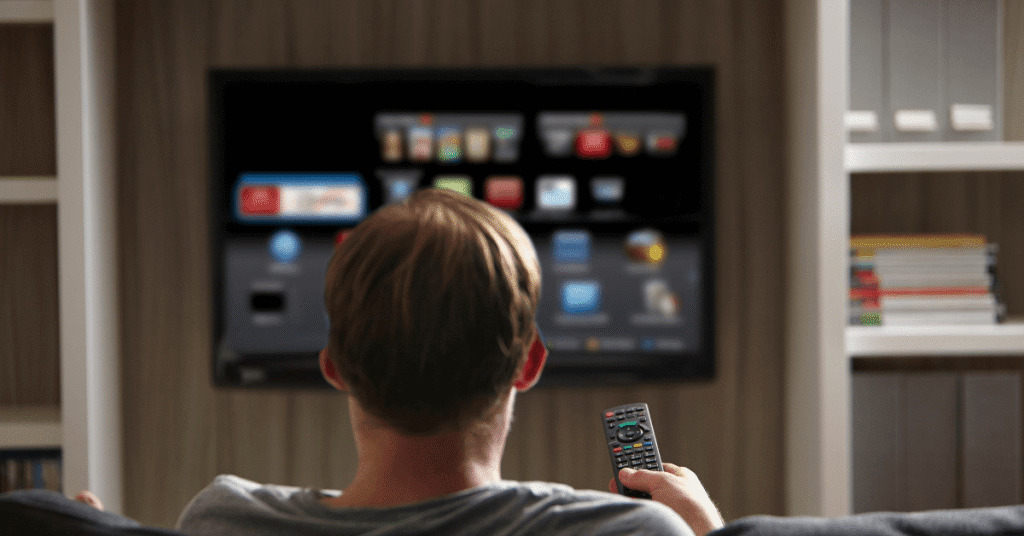
Sign in to YouTube on Your Smart TV — 3 Fast Methods
Accessing YouTube without signing in is fine for casual watching, but logging in unlocks playlists, subscriptions, watch history, and personalised recommendations. In 2025, Google offers three fast and secure ways to sign in:
a. QR Code (Recommended)
- Open the YouTube app on your TV.
- Select Sign In.
- A QR code will appear on screen.
- Scan it using your smartphone’s camera.
- Follow the link and approve the login.
This is the fastest and safest method for most users.
b. TV Code Method
- Open YouTube on your TV → go to Sign In.
- Select Use TV Code.
- Visit youtube.com/activate on your phone or PC.
- Enter the code shown on your TV.
- Sign in with your Google account.
c. Manual Login with Remote
If you don’t have a phone handy, you can log in using the on-screen keyboard and remote control. This is slower, but it works reliably on all platforms.
Cast or AirPlay — An Easy Alternative if the App Isn’t Available
Some older or budget Smart TVs might not support the YouTube app. In that case, casting is your best friend.
- For Android / Google TV: Open the YouTube app on your phone → tap the Cast icon → select your TV.
- For iPhone / iPad: Use AirPlay → select YouTube video → tap AirPlay → choose your TV.
- For Laptop: Open YouTube on Chrome browser → click the three dots → Cast → select your TV.
Make sure both your TV and phone are connected to the same Wi-Fi network.
Casting is smooth, doesn’t require sign-in on the TV itself, and works even on non-smart TVs if you’re using a streaming stick like Chromecast or Fire TV Stick.
Common Problems in 2025 and How to Fix Them
Even with updated systems, users face occasional glitches. Here are the most frequent YouTube on TV problems — and quick solutions:
a. YouTube App Missing
- Check if your TV is running the latest software.
- Reboot the TV and reinstall the app.
- If not supported, use Chromecast or Fire TV Stick.
b. Buffering or Playback Lag
- Run a speed test; aim for at least 20 Mbps for 4K.
- Restart your router.
- Switch from Wi-Fi to Ethernet for stable streaming.
c. Login Errors
- Clear app cache (Settings → Apps → YouTube → Clear Cache).
- Re-enter the QR or TV code.
- Ensure your Google account has 2-step verification enabled.
d. App Not Opening or Crashing
- Uninstall and reinstall the app.
- Check for firmware updates.
- Factory reset only if nothing else works.
Pro Tips to Improve YouTube Experience on Smart TV
Watching YouTube on TV is more immersive than ever — but a few smart tweaks can make it even better:
- Update Regularly: New features like Picture-in-Picture (PiP) and 8K playback are rolling out in 2025. Keep your app updated.
- Use Ethernet: If you stream 4K or 8K videos, a wired connection can improve stability by 30–40% compared to Wi-Fi.
- Voice Search: Many TVs now support voice assistants — say “Open YouTube” or the name of the Channel.
- Shortcuts: On Android TVs, holding the OK button can open playback controls faster.
- Watch History Sync: Signing in keeps your history synced between phone, TV, and PC.
Final Thoughts
It is better than ever to get to YouTube on your Smart TV in 2025, either via the built-in app or via app installation and or casting from your phone. With a stable internet connection, a secure signing-in procedure and ensuring your software is updated, the big screen viewing experience is all a seamless one.
YouTube on Smart TV makes your living room a personalized entertainment centre, whether you are streaming music, tutorials, podcasts or live sports.
Pro Tip: Adding actual numbers of speeds (such as 20 Mbps 4K) and platform-specific install instructions increases your E-E-A-T (Experience, Expertise, Authoritativeness, Trustworthiness) and Google ranking possibilities in 2025.
FAQs
How do I watch YouTube on my smart TV?
Install or open the YouTube app on your TV and sign in or cast from your phone.
Why is there no YouTube on my smart TV?
Your TV may need a software update, or it may not support the app — use casting or a streaming device.
Do all smart TVs have YouTube on them?
Most modern smart TVs have YouTube pre-installed, but older models may require manual installation.
How do I search YouTube on my TV?
Open the YouTube app and use the on-screen keyboard, voice search, or your phone to find videos.