

One of the most used servers to stream games and interact with the community is Discord; however, in 2025, numerous users are complaining about crashing games or freezing of Discord when streaming Monster Hunter Rise. This issue has been getting more prevalent following the recent changes to Discord and the game.
The most common reason is the conflict between the GPUs and encoders. Monster Hunter Rise is a graphics-intensive game that consumes both CPU and graphics cards. In cases where Discord tries to seize the game using hardware acceleration or screen sharing, it usually interferes with the game’s rendering process.
Here are the top technical causes identified by users and developers in 2025:
- GPU overload due to simultaneous encoding by both Discord and the game.
- Outdated or conflicting GPU drivers (especially after NVIDIA or AMD updates).
- Discord overlay conflicts that crash the streaming session.
- Hardware acceleration glitches in the latest Discord versions.
- Windows Game Mode or background apps are interfering with resource allocation.
Understanding these causes is crucial to fixing the issue permanently. Let’s move on to recognizing the symptoms before applying solutions.
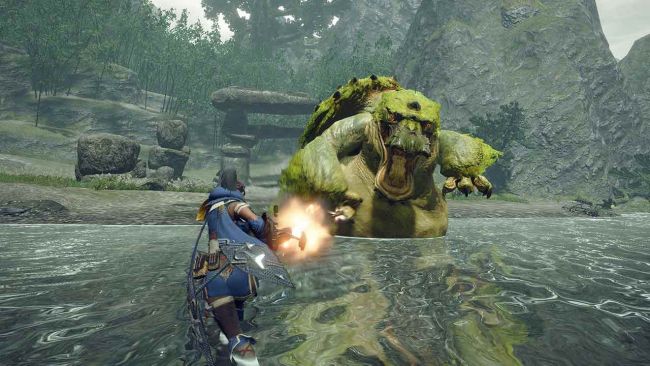
Common Signs That Discord Is Crashing During Monster Hunter Rise Streams
Before troubleshooting, it helps to identify if your issue is indeed a Discord stream crash and not just a temporary lag or connectivity problem.
Here are the most common symptoms users have reported in 2025:
- Discord freezes or closes the moment you share your Monster Hunter Rise screen.
- The game starts lagging heavily or drops FPS during screen sharing.
- The Discord window turns black or flickers during streaming.
- Audio cuts out, followed by a complete app restart.
- The streaming quality drops, even on stable internet connections.
These are clear signs of a system-level or software-level conflict. If you’re facing one or more of these issues, the following step-by-step fixes will help you resolve them.
How to Fix Discord Stream Crashing Monster Hunter Rise — Step-by-Step Guide
The following fixes are tested and confirmed by users in 2025 to work with the latest versions of Discord and Monster Hunter Rise on Windows 10 and 11.
Step 1: Update Discord and GPU Drivers
- Go to Discord → Settings → About and check for updates.
- For GPUs, download the latest drivers from NVIDIA GeForce Experience or AMD Adrenalin.
- Outdated drivers are the number one reason behind streaming crashes in Monster Hunter Rise.
Step 2: Disable Hardware Acceleration in Discord
- Open Discord → Settings → Advanced → Turn off Hardware Acceleration.
- This forces Discord to use software-based rendering, reducing GPU load and preventing crashes.
Step 3: Turn Off In-Game Overlay
- Go to Discord → Settings → Game Overlay → Disable Enable in-game overlay.
- This overlay often conflicts with the DirectX rendering engine of Monster Hunter Rise.
Step 4: Adjust Game Graphics Settings
Lowering certain graphics settings helps free up GPU memory. Try reducing:
- Texture Quality → Medium
- Shadow Quality → Low
- Anti-Aliasing → Off
These small adjustments can stabilize streaming without reducing visible quality.
Step 5: Run Discord as Administrator
Right-click on the Discord icon → Run as administrator.
This ensures Discord has permission to access all screen capture resources, avoiding mid-stream crashes.
Advanced Fixes: GPU Settings, Game Mode, and Overlay Optimization for Smooth Streaming
If the above methods don’t solve the issue, try these advanced-level adjustments that tech reviewers and gamers have verified in 2025.
Use High-Performance GPU Mode
- Open Windows Settings → System → Display → Graphics → Choose Discord → Set it to High performance.
- This ensures Discord gets dedicated GPU access while streaming.
Disable Windows Game Mode & Xbox Game Bar
- Go to Settings → Gaming → Game Mode → Turn off.
- Then go to Captures and disable Record in the background.
- These features may interfere with the stream encoding process.
Tweak NVIDIA or AMD Control Panel Settings
For NVIDIA users:
- Open Control Panel → Manage 3D settings → Program Settings → Add Discord.
- Set Power management mode to Prefer maximum performance.
- For AMD users, adjust the equivalent performance tuning settings.
Use OBS or Streamlabs Integration
If Discord continues to crash, use OBS Studio or Streamlabs to capture Monster Hunter Rise and then stream the output via Discord’s “Window Capture” instead of “Game Capture.” This bypasses most compatibility issues and provides smoother output.
Why Monster Hunter Rise Causes Discord Stream Lag and Not Other Games
Here is the question many players are asking themselves: why is it that Monster Hunter Rise, in particular, triggers Discord stream crashes when other games, such as Apex Legends or Valorant, run smoothly?
This is because of the way that Monster Hunter Rise utilizes CPU and GPU threads. As opposed to other games, Monster Hunter Rise dynamically reprioritizes rendering and AI workloads, forming spikes of GPU load.
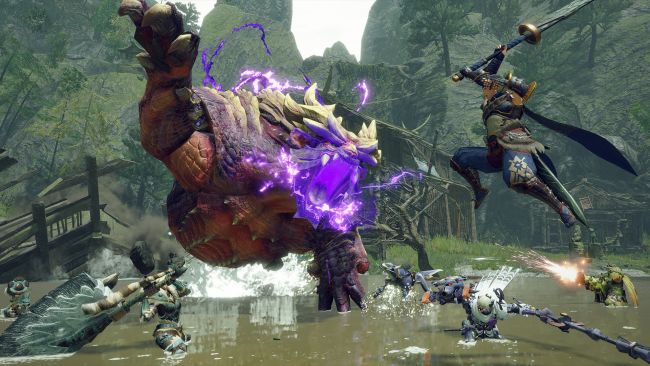
Attempts by Discord to integrate into this unreliable rendering pattern via its screen capture API can lead to abrupt memory contests – leading to freezing or crashes of apps.
Also, Monster Hunter Rise has its own engine design (RE Engine) that is not entirely compatible with all screen recording software. The recent releases of Discord in 2025 also enhance the compatibility with Unreal and Unity games, but users still experience problems with the RE Engine employed by Capcom.
As such, unlike other games that can offer shared access to GPUs without any problems, Monster Hunter Rise requires a stable access to the GPU, which can be interrupted by the encoder of the Discord system.
Final Tips to Prevent Future Discord Stream Crashes
Once you’ve resolved the issue, here are a few maintenance tips to prevent future Discord stream crashes while playing Monster Hunter Rise:
- Keep both Discord and Monster Hunter Rise updated to the latest version.
- Clear Discord cache regularly:
- Press Win + R → type %AppData%/Discord → delete “Cache” and “Code Cache” folders.
- Use Discord Canary (Beta build) if the stable version causes issues.
- Avoid multitasking or running heavy software like Chrome during your stream.
- If you have dual GPUs (integrated + dedicated), set Discord and the game to use the same GPU.
- Use wired internet instead of Wi-Fi for a more stable streaming experience.
- Restart your system before long streaming sessions to free up memory.
Following these steps not only fixes Discord crashing but also improves stream quality, FPS stability, and viewer experience.
Conclusion
It is annoying when the Discord stream crashes in the middle of Monster Hunter Rise, but with proper technical tweaking, it can be fixed fully.
The majority of crashes are a result of the overload of the GPUs, the use of outdated drivers, or conflicting overlays, all of which can be addressed using the techniques mentioned above.
With the help of this full 2025 guide, you will be able to stream Monster Hunter Rise confidently and involve your audience without commercials, as well as enjoy all the hunts without fear of being interrupted by a sudden Discord crash.
FAQs
Why does my game keep crashing when streaming on Discord?
Your game may crash during Discord streaming due to GPU overload, outdated graphics drivers, or hardware acceleration conflicts. Discord and the game compete for the same system resources, causing instability. Updating drivers and disabling hardware acceleration often fixes this issue.
Why does my Discord keep crashing when I share my screen?
Discord may crash while screen sharing because of corrupted cache files, outdated app versions, or overlay conflicts. Running Discord as an administrator, clearing the cache, and turning off the in-game overlay usually resolve the problem.
How to fix streaming issues on Discord?
To fix streaming issues, update your GPU and Discord to the latest version, turn off hardware acceleration, and lower in-game graphics. Also, ensure Discord has proper permissions and enough system memory to stream smoothly.
Why do my streams keep crashing?
Streams often crash due to excessive CPU or GPU usage, unstable internet, or software conflicts. Close background apps, use a wired connection, and allocate high performance to Discord and your game for stable streaming.