
When you use Bose headphones with the device, you can enjoy an immersive listening experience thanks to advanced Bluetooth technology.
Just as with connecting to a smartphone, tablet, or laptop, the process is straightforward, but it requires specific steps. It includes a clear description of all the methods to help you set up your Bose headphones and provide stable wireless functionality.
Understanding the Bose Headphones Pairing Process
Understanding the operation of the Bose Bluetooth technology is essential before pairing. The innovative pairing feature of every Bose headphone model (i.e., the QuietComfort or Bose 700) enables you to connect multiple devices simultaneously.
When you open your headphones, they automatically enter pairing mode. An indicator is a blue flashing light that usually signifies that the device is about to connect.
If the headphones were previously paired, you can press and hold the power/Bluetooth button until the indicator light turns blue again. This reinvents the connection procedure, allowing you to connect another device easily.
How to Pair Bose Headphones with Android Devices
Connecting Bose headphones to an Android device is a straightforward process. Follow these steps carefully for the best connection quality:
- Open the Settings menu on your Android device.
- Tap Bluetooth and make sure it is turned on.
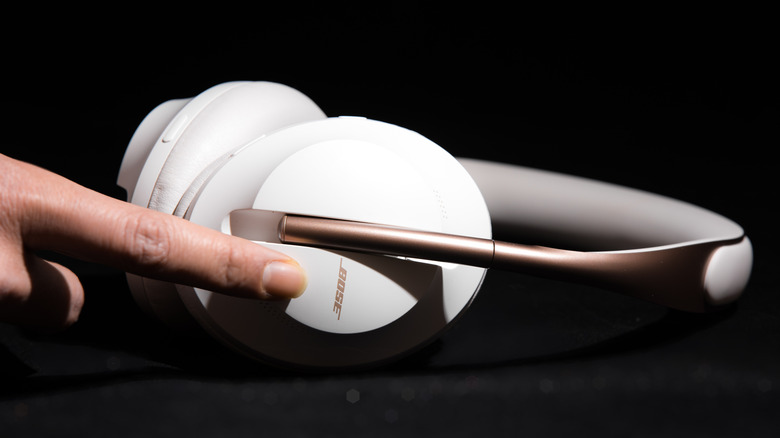
- Press and hold the Power or Bluetooth button on your Bose headphones until the light flashes blue.
- From the list of available devices, select your Bose model name (for example, Bose QC45 or Bose 700).
- Wait for the confirmation sound or message that pairing is complete.
Once connected, your headphones will automatically reconnect to your Android device whenever Bluetooth is enabled and the headphones are powered on.
Steps to Pair Bose Headphones with iPhone or iPad
For Apple users, the pairing process is just as simple, but it has a slightly different interface. Here is how you can do it:
- Open the Settings app on your iPhone or iPad.
- Tap Bluetooth and toggle it to the “on” position.
- Power on your Bose headphones and press the Bluetooth button until the blue indicator starts blinking.
- Under Other Devices, find and tap the name of your Bose headphones.
- Wait until it moves to My Devices and shows “Connected.”
You can also use the Bose Music App to manage connections, personalize sound settings, and update firmware for better performance.
Pairing Bose Headphones with Windows or macOS
Pairing Bose headphones with a laptop or desktop allows you to enjoy immersive audio during work, calls, or entertainment. Follow these steps for both operating systems:
| Device Type | Steps to Pair Bose Headphones |
| Windows 10/11 | 1. Open Settings → Devices → Bluetooth & other devices.2. Turn on Bluetooth.3. Click Add Bluetooth or other device → Bluetooth.4. Select your Bose model from the list.5. Wait for “Connected” status confirmation. |
| macOS | 1. Click the Apple menu → System Settings → Bluetooth.2. Make sure Bluetooth is turned on.3. Hold the Bluetooth button on your Bose headphones until the blue light blinks.4. Choose your Bose headphones from the list and click Connect. |
Once connected, the system will remember the pairing and automatically connect whenever both devices’ Bluetooth functions are active.
Using the Bose Music App for Seamless Connectivity
The Bose Music App offers a more refined and user-friendly way to manage your headphone connections. It provides control over sound settings, firmware updates, and personalized audio preferences.
To pair through the app:
- Download and install the Bose Music App from the Play Store or App Store.
- Please turn on your Bose headphones and ensure they are in pairing mode.
- Open the app and tap Add Product.
- Follow on-screen prompts to complete the connection process.
This method not only ensures seamless pairing but also keeps your device up to date with the latest Bose software enhancements.
Troubleshooting Bose Headphones Connection Issues
If your Bose headphones are not connecting or frequently disconnecting, try these practical troubleshooting steps:
- Ensure your headphones are fully charged.
- Delete previous Bluetooth pairings on your device.
- Restart both your headphones and the connected device.
- Keep your device within 10 meters for stable connectivity.
- Update your Bose firmware via the Bose Music App.
If issues persist, perform a factory reset as described in the Bose manual. This clears old data and resolves most pairing conflicts.
Tips to Maintain a Stable Bluetooth Connection
To ensure your Bose headphones maintain high-quality audio and a consistent connection, follow these best practices:
- Keep your device and headphones within proximity.
- Avoid pairing multiple devices simultaneously unless necessary.
- Do not place your phone or laptop near Wi-Fi routers or microwaves, as these devices may interfere with Bluetooth signals.
- Regularly update both your device’s software and the Bose Music App.
- Clean your headphones’ sensors and ports occasionally to prevent hardware disruptions.
Maintaining these habits will help you experience clear sound and strong connectivity every time you use your Bose headphones.
FAQs
What is the pairing mode for Bose headphones?
To pair Bose headphones, press and hold the Bluetooth button until the indicator light turns blue, indicating that your headphones are connected. You can now select your Bose model from the list of Bluetooth devices on your device.
My Bose headphones have stopped functioning. Why?
Bose headphones can also fail to connect due to a low battery, outdated firmware, or an old device pairing. Turn them off and on again, delete any old Bluetooth connections, and ensure that your headphones are within range. Pairing can be fixed by updating via the Bose Music App.
I want to know how to connect my Bose headphones to my iPhone.
The iPhone has Bluetooth, which can be enabled by accessing the Settings menu and selecting Bluetooth. Switch on your Bose headphones and press the Bluetooth button until it turns blinking blue. On Other Devices, select your model of Bose. After connecting, it will be displayed under ‘My Devices’.
How do I place my headphones in pairing mode?
Most wireless headphones can be put in pairing mode by pressing and holding the power or Bluetooth button until the LED indicator begins flashing blue or white. This indicates that the headphones can be found. Next, switch on your device’s Bluetooth.