
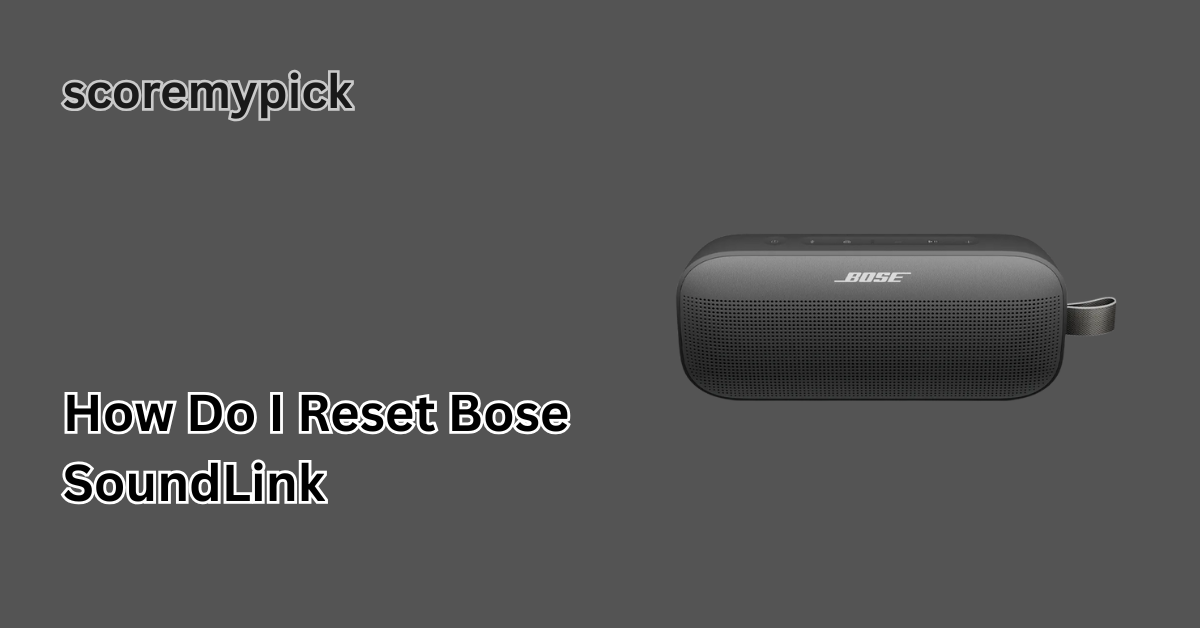
Bose SoundLink speakers are characterised by good, rich audio, smooth design, and smooth wireless connection. However, like any intelligent device, they may freeze, be unable to connect, or act unpredictably.
When this occurs, one of the fastest and most efficient ways of solving this is by resetting your Bose SoundLink. You may have problems pairing via Bluetooth, distorted sound, or still have issues with the charging process, all of which can be solved within a few minutes by properly resetting your speaker.
You will get to know how to reset your Bose SoundLink in this guide with step-by-step instructions. We will discuss the soft resets, full factory resets, and model-specific recommendations for SoundLink Mini, Revolve, Micro, and other popular versions. Also, we will describe what happens after a reset, thus you will be able to retrieve your music without being frustrated.
How to Reset Bose SoundLink
If your Bose SoundLink suddenly stops responding or won’t pair correctly, a quick reset often solves the issue. Here’s a fast and reliable method to reset most Bose SoundLink speakers in 2025:
- Power on the speaker by pressing the Power button.
- Press and hold the Power button for 10 to 15 seconds until you see the light indicators blink or hear a tone.
- Release the button once the speaker turns off automatically.
- Power it back on, and your Bose SoundLink should now be reset.
Pro Tip: This method works for most models, including SoundLink Color, Mini, Revolve, and Micro. For some older versions, the steps may vary slightly — which we’ll cover later in this guide.
A quick reset can resolve:
- Bluetooth connection errors
- Audio distortion or no sound issues
- Charging or power glitches
- Software freezes and bugs.
If this quick reset doesn’t fix your issue, don’t worry — the next sections will guide you through soft and factory reset methods for every major Bose SoundLink model.
Soft Reset vs Factory Reset: Which Reset Does Your Bose SoundLink Need?
Before jumping into the reset steps, it’s important to understand the difference between a soft reset and a factory reset. Both serve different purposes, and choosing the right one can save you time and keep your personal settings intact.
Soft Reset:
A soft reset is a reboot of your smartphone. It removes temporary glitches, reboots the system, and fixes minor bugs, but it does not remove the stored Bluetooth pairings and preferences. This is normally sufficient when your speaker is not being powered on, when it is not responding promptly or when your speaker is experiencing connection issues.
Factory Reset:
A factory reset will remove all the data — paired devices, settings saved, and custom settings, restoring your speaker to its out-of-the-box condition. It is ideal when there are significant software problems with your SoundLink, there is persistent pairing that fails, or when you are about to sell it to another person.
Quick tip: Start with a soft reset first. If the problem remains, only then go for a factory reset.
Step-by-Step Guide: How to Soft Reset and Restart Your Bose SoundLink
A soft reset is simple, quick, and doesn’t erase your paired devices. Here’s how you can do it in 2025:
- Make sure the speaker is on.
Press the Power button to turn it on. If the speaker isn’t responding, plug it into a charger first.
- Press and hold the Power button for 10–15 seconds.
You’ll notice the Bluetooth or power light blink, or the speaker may emit a short tone. This means it’s resetting.
- Wait for the speaker to power off automatically.
Once it does, leave it off for 5 seconds.
- Turn the speaker back on.
Press the Power button again. It should start normally with no glitches.
- Reconnect to your Bluetooth device.
Go to your phone or laptop Bluetooth settings and reconnect.
Result: Your Bose SoundLink should now respond smoothly, pair faster, and play without interruption. A soft reset fixes over 70% of common issues, including minor bugs and audio lags.
4. Full Factory Reset Instructions: How to Factory Reset Bose SoundLink
If the soft reset didn’t solve the issue, a factory reset can help you restore the speaker completely. Note that this will erase all saved Bluetooth connections and return the device to its default settings.
Here’s how to do it:
- Turn on your Bose SoundLink speaker.
- Make sure it’s charged or plugged into a power source.
- Press and hold the Power and Volume Down buttons together for 10 to 15 seconds.
- Some models may use Bluetooth + Volume Down instead — check your model instructions below.
- Release the buttons when you hear a confirmation tone or see the lights flash.
- The speaker will power off and reboot with factory settings.
- Re-pair your devices.
- Open Bluetooth on your phone or computer, search for “Bose SoundLink,” and connect like you did the first time.
Important:
- All paired devices will be forgotten.
- Custom settings, EQ adjustments, or language preferences will be reset.
- Make sure to back up any settings if applicable.
This factory reset method works for most Bose SoundLink models, including SoundLink Mini II, SoundLink Color II, SoundLink Revolve, and SoundLink Flex. In the next section, we’ll break it down by model for extra clarity.
Model-Specific Reset Tips: SoundLink Mini, Revolve, Micro, and Classic
While most Bose SoundLink speakers follow the same reset process, a few models have slight variations. Here’s a clear and updated (2025) guide to help you reset your specific model correctly:
Bose SoundLink Mini & Mini II
- Turn on the speaker.
- Press and hold the Mute button for 10 seconds.
- The indicator lights will blink, and the speaker will shut down.
- Turn it back on — the soft reset is complete.
- For a factory reset: Press and hold Power + Volume Down for 10–15 seconds until the lights flash.
Bose SoundLink Color & Color II
- Press and hold the Aux and Volume Down buttons for 10 seconds.
- The speaker will reboot.
- Reconnect Bluetooth after a restart.
- Factory reset: Power on, then press and hold Power + Volume Down for 10–15 seconds.
Bose SoundLink Revolve & Revolve+
- Turn on the speaker.
- Press and hold the Power button for 10 seconds to soft reset.
- To factory reset, press and hold Bluetooth + Volume Down for 10–15 seconds.
Bose SoundLink Micro
- Power on the speaker.
- Press and hold the Power button for 10 seconds to soft reset.
- For a factory reset, press and hold Power + Volume Down for 15 seconds until the indicator lights flash.
Older Classic Models (SoundLink Mobile)
- Press and hold Mute for 10 seconds.
- Lights will blink, and the device will restart.
- For a factory reset, press Mute + Volume Down together for 15 seconds.
Tip: If your speaker isn’t responding to any buttons, connect it to a charger and retry the steps. Sometimes a low battery can prevent a successful reset.
After the Reset: Reconnecting, Restoring Settings, and When to Contact Bose Support
Once your Bose SoundLink has been reset, the final step is to reconnect your devices and set it up the way you like. Here’s what to do:
Reconnect Bluetooth Devices
- Go to your smartphone or laptop’s Bluetooth settings.
- Select “Forget” the previous Bose SoundLink connection if it’s saved.
- Search for new devices and select your Bose speaker.
- Once paired, play music to test the connection.
Restore Language or Custom Settings
If your speaker had a specific language or voice prompt setting, it may have returned to default. Use the Bose Connect app (available on Android and iOS) to restore your preferences quickly.
Update the Firmware (Recommended in 2025)
Bose frequently releases software updates to improve Bluetooth stability and sound performance.
- Open the Bose Connect app
- Check for “Product Update”
- Install the update to ensure your speaker works at its best.
When to Contact Bose Support
If your speaker still won’t power on, won’t connect, or has hardware issues after a factory reset, it may require professional repair.
- Visit the Bose official support.
- Check warranty eligibility
- Start a service or replacement request if needed.
Pro Tip: Many Bluetooth issues come from the connected device rather than the speaker itself. Try resetting your phone’s Bluetooth or pairing with a different device to rule this out.
Final Thoughts
One of the simplest methods of fixing the software glitches, connection dropouts, or performance problems with your Bose SoundLink speaker is to reset the device. Most minor issues can be solved with a soft reset, and only a factory reset can restart your speaker clean.
It does not matter what model you have bought, a Mini, Color, Revolve, or Micro, the correct reset steps may save you a lot of time and frustration. And when everything else fails, Bose Support is around the corner whenever you need.
With this very easy reset technique, you will maintain the smooth operation of your Bose SoundLink all the time – as well as the continuous playing of your music.