
The coverage of a home security system is as good as the system. Expanding the network with additional devices is one of the most intelligent choices to enhance the surveillance of your home, particularly with Blink cameras.
With Blink, you can have multiple locations under surveillance within seconds, thanks to a user-friendly setup process and seamless app integration.
You need to protect your backyard, entryway, or garage, and finding out how to add cameras to your Blink network will ensure that you protect every part of your property.
Understanding the Blink Network and Sync Module Connection
It is essential to understand the working principle of the Blink ecosystem before introducing new cameras. The Blink network is organized around three key elements: the Blink camera, the Sync Module, and the Blink app.
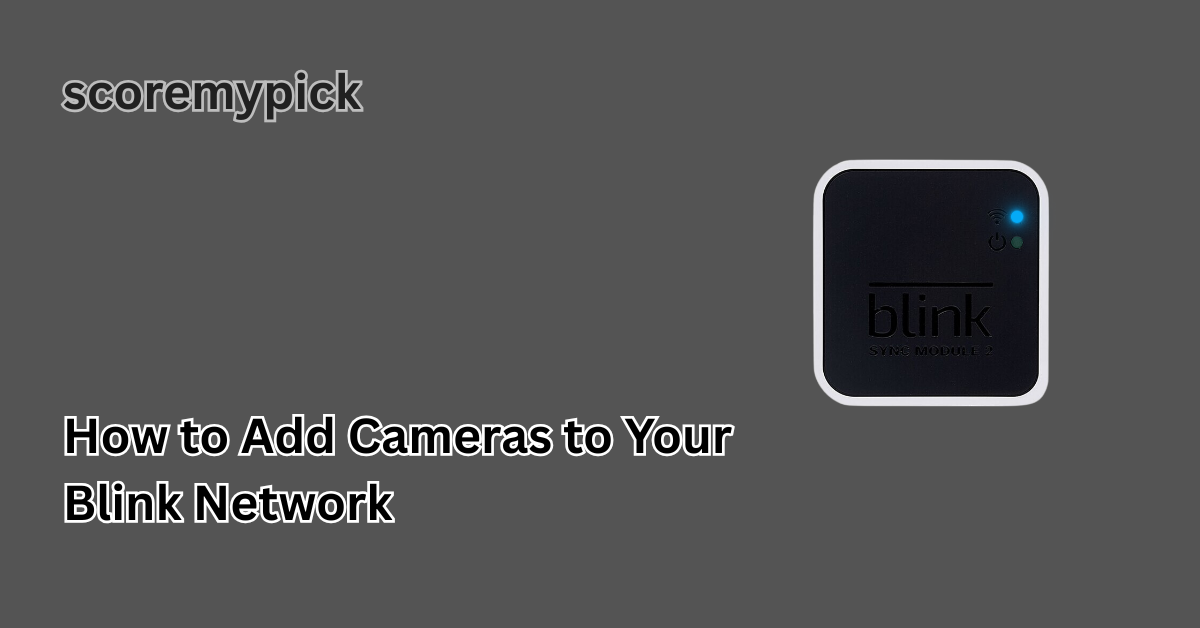
The Sync Module serves as the hub of communication between your cameras and the Wi-Fi network. It operates multiple cameras simultaneously, ensuring seamless video delivery and efficient energy consumption. The cost of most Blink systems allows for the viewing of up to ten cameras via a single Sync Module.
Here’s how the setup works:
| Component | Function | Importance |
| Blink Camera | Captures video footage and sends it to the app | Provides live and recorded video |
| Sync Module | Connects cameras to Wi-Fi | Enables real-time communication |
| Blink App | Manages devices and settings | Allows remote control and viewing |
Understanding this relationship ensures your system runs smoothly as you expand it.
Preparing Before Adding a New Blink Camera
Proper preparation prevents most setup problems. Before adding a new Blink camera to your network, ensure the following points are in order:
1. Stable Wi-Fi Connection
Your Wi-Fi must be reliable and have a strong signal where you plan to install the camera. Weak connections cause sync errors or video lag.
2. Fully Updated Blink App
Download or update the Blink Home Monitor App from the Google Play Store or Apple App Store. Older app versions may not support the latest devices.
3. Active Blink Account
Ensure your Blink account is properly set up and verified. You’ll need it to log in and add new devices.
4. Compatible Sync Module
Ensure your new camera model is compatible with your existing Sync Module. For example, Blink Outdoor 4 and Indoor models may require Sync Module 2.
5. Fresh Batteries Installed
If your Blink camera is battery-powered, insert new lithium AA batteries before attempting to pair it.
By completing these checks, you’re ready for a smooth and efficient camera setup.
Step-by-Step Process to Add Cameras to Your Blink Network
Adding a Blink camera is simple if you follow the process carefully. Here’s how to do it correctly:
Step 1: Open the Blink App
Launch the Blink Home Monitor App and sign in using your account credentials. Ensure you’re on the home screen that displays your Sync Module and existing cameras.
Step 2: Tap on the “+” Icon
Look for the “+” Icon located in the upper right corner of the screen. Tap it to start adding a new device.
Step 3: Choose the Device Type
Select “Blink Wireless Camera” or the specific model you’re adding (such as Outdoor, Indoor, or Mini).
Step 4: Scan the QR Code
Your camera will have a QR code printed on the inside of the battery compartment or on the device label. Use your phone’s camera to scan this code.
Step 5: Assign the Camera to a System
After scanning, select the system or Sync Module group to which you want to connect the camera.
Step 6: Wait for Sync
The app will automatically pair the new camera with your Sync Module. This process takes less than a minute if the Wi-Fi signal is stable.
Step 7: Confirm and Name Your Camera
Once connected, name the camera according to its location, such as “Front Door” or “Garage View.” This makes it easier to manage multiple cameras later.
Your new camera should now appear on the Blink app’s home screen, ready to stream and record video.
Troubleshooting Common Issues While Adding Cameras
Sometimes, technical issues can interrupt the pairing process. Below is a quick troubleshooting table to guide you through common problems and their solutions:
| Issue | Possible Cause | Quick Solution |
| Camera not connecting to Wi-Fi | Weak signal or wrong password | Move closer to router or re-enter Wi-Fi credentials |
| Camera not found by app | Outdated Blink app or Sync Module error | Update the app and restart Sync Module |
| Flashing red light | Camera unable to connect | Reset the camera and retry pairing |
| Camera offline after setup | Sync Module lost connection | Power cycle the Sync Module and router |
| Low battery alert | Old or weak batteries | Replace with new lithium AA batteries |
Following these solutions usually restores full connectivity in minutes.
How to Optimize the Performance of Your Blink Cameras
Once your cameras are successfully connected, optimizing their performance ensures long-term reliability and better video quality.
1. Camera Placement
Install cameras at eye level, pointing slightly downward for the best motion detection range. Avoid direct sunlight or glare.
2. Wi-Fi Signal Strength
Place your Sync Module near the center of your home, ensuring that thick walls or metal objects do not obstruct it.
3. Regular Firmware Updates
Blink frequently releases updates that improve security and connectivity. Keep your app and camera firmware up to date.
4. Battery Management
Use lithium batteries instead of alkaline ones for longer life. You can also enable motion detection zones to reduce unnecessary video recordings.
5. Secure Access Control
Enable two-factor authentication in your Blink account to prevent unauthorized access to your video feed.
6. Routine Checks
Open your Blink app periodically to confirm that all cameras are online and functioning correctly.
Implementing these best practices helps maintain clear video streams and extends the lifespan of your Blink devices.
Final Thoughts
Installing cameras in your Blink network is a straightforward task that also significantly enhances your home security. With a bit of knowledge about the Blink ecosystem, proper preparation, and adherence to every step in all its particulars, you will be able to create a fairly strong surveillance system with respect to your requirements.
Never forget to keep your network updated with regular firmware releases, perform battery maintenance, and position your Wi-Fi router properly. Such trifles will ensure that all cameras on your Blink system operate optimally, providing you with peace of mind and consistent security, available 24/7.
FAQs
How do I add a Blink camera to my network?
To add a Blink camera, open the Blink Home Monitor app and tap the “+” icon on the home screen. Select your camera model and scan the QR code inside the device. Follow the on-screen prompts to connect it to your Sync Module and Wi-Fi network for activation.
Can I add more cameras to my Blink account?
Yes, you can add multiple cameras to one Blink account through the Blink app. A single Sync Module supports up to ten cameras, depending on Wi-Fi strength. This enables you to monitor various locations, including doors, hallways, and outdoor spaces, from a single dashboard.
How do I re-add a Blink camera?
If your camera was removed or reset, open the Blink app, tap the “+” icon, and select your camera model again. Scan the QR code on the device and follow the setup steps to reconnect it. Ensure the camera has fresh batteries and a stable Wi-Fi connection during the process.
Why does my Blink camera display a ‘Network Request Failed’ message?
This message appears when your camera is unable to connect to the Blink servers. It usually happens due to weak Wi-Fi, router configuration issues, or temporary server outages. Try restarting your router, Sync Module, and camera to re-establish a stable internet connection.
1 thought on “How to Add Cameras to Your Blink Network”