

Bose headphones are characterised by crystal clear audio, intelligent noise cancellation and smooth designs. Whatever you use them for, work, editing, or entertainment, by plugging them into your Mac, you have the ability to turn your listening experience to a whole new level with Bose headphones.
The macOS provided by Apple can be easily connected with the Bose wireless headphones due to its powerful Bluetooth capabilities. Nevertheless, small difficulties are encountered during the installation or reconnecting by many users.
This manual will assist you in knowing all the specifics, including pairing and troubleshooting, as well as enhancing the connection to the sound to have a perfect listening session.
Preparing Your Bose Headphones for Connection
Before connecting, ensure your Bose headphones are ready to pair with your Mac. Following these preparation steps will make the process smoother and avoid unnecessary issues.
Checklist to prepare:
- Charge your headphones completely. A low battery may cause connection drops.
- Turn on Bluetooth on your Mac by selecting the Apple logo → System Settings → Bluetooth.
- Reset previous connections on your headphones if they are already paired with another device.
- Keep your headphones close to your Mac — ideally within one meter — for stronger pairing signals.
- Update firmware using the Bose Music App or the Bose Connect App to ensure compatibility with the latest macOS updates.
Note: Most Bose models, such as Bose QuietComfort, Bose 700, and Bose Sport Earbuds, follow the same pairing principles.
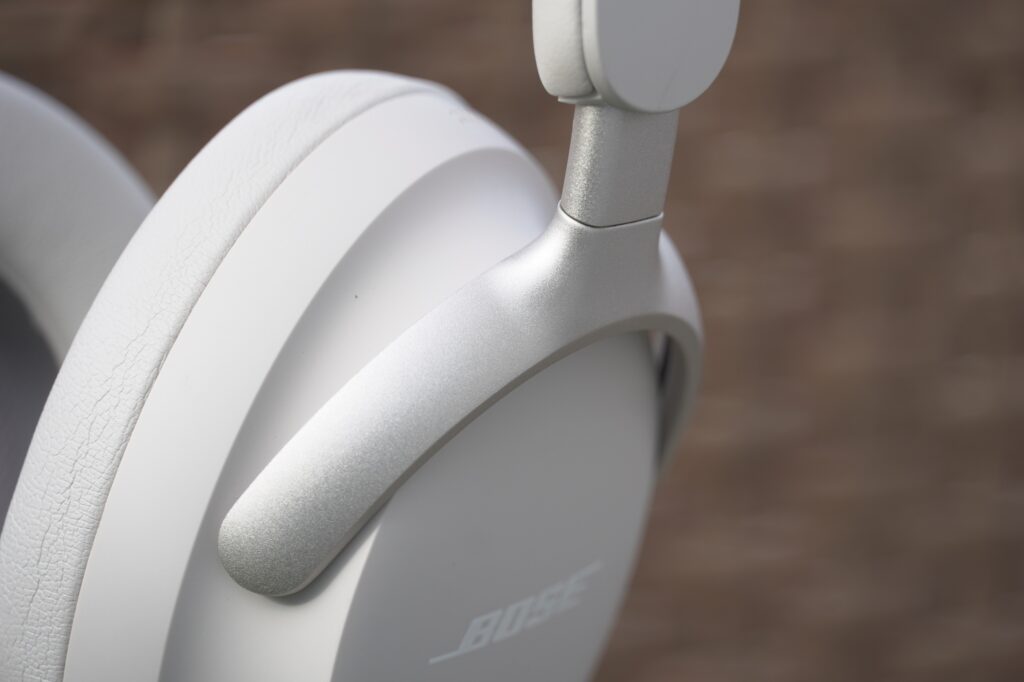
Step-by-Step Guide: How to Connect Bose Headphones to Mac
Now that your device is prepared, follow these precise steps to connect your Bose headphones to your Mac system.
| Step | Action | Description |
| 1 | Activate Pairing Mode | Turn on your Bose headphones. Press and hold the Power or Bluetooth button until the Bluetooth indicator blinks blue or you hear the “Ready to pair” voice prompt. |
| 2 | Enable Bluetooth on Mac | On your Mac, open the Apple Menu → System Settings → Bluetooth. Ensure Bluetooth is toggled on. |
| 3 | Locate Your Headphones | Wait for your Bose headphones to appear in the list of available devices under Nearby Devices. |
| 4 | Connect | Click Connect next to your Bose device. Wait a few seconds for the pairing to complete. |
| 5 | Confirm Connection | Once connected, the LED light on your Bose headphones will turn white, and a confirmation tone may play. |
You’re now connected!
Your Bose headphones are ready to stream music, attend meetings, or edit videos wirelessly through your Mac.
Using the Bose Music App for Enhanced Connectivity
While Bluetooth pairing works perfectly through macOS, the Bose Music App offers additional benefits. This app helps you manage firmware updates, adjust sound settings, and personalize noise cancellation levels.
Benefits of using the Bose Music App:
- Firmware updates: Keep your headphones updated for smoother Mac compatibility.
- Custom sound settings: Modify EQ and sound balance directly from the app.
- Noise cancellation control: Adjust noise cancellation levels for calls or quiet environments.
- Device management: Easily switch between connected devices, including Mac, iPhone, or iPad.
Tip: After connecting your Bose headphones to your Mac, open the Bose Music App on your smartphone to sync settings across devices seamlessly.
Troubleshooting: Bose Headphones Not Connecting to Mac
Even after following all steps correctly, sometimes Bose headphones might not connect to your Mac. Don’t worry — it’s usually a minor glitch that can be fixed easily.
Here are the most common issues and their solutions:
| Problem | Possible Cause | Solution |
| Headphones not appearing in Bluetooth list | Bluetooth is disabled or outdated drivers | Turn Bluetooth off and on again. Restart your Mac and retry pairing. |
| Connection drops frequently | Multiple paired devices interfere | Remove unused Bluetooth devices from your Mac and reconnect only Bose headphones. |
| Bose not connecting after macOS update | Outdated firmware or cache issue | Update Bose firmware through the Bose Music App. Reset Bluetooth preferences on your Mac. |
| Poor audio quality | Signal interference | Keep distance under 1 meter and avoid walls or metal surfaces. |
| Bose headphones paired but no sound | Wrong output device selected | Go to System Settings → Sound → Output and choose your Bose headphones. |
If your Bose headphones still do not connect, perform a factory reset on the headphones by holding the Power button for 10 seconds until all lights blink.
How to Reconnect Bose Headphones Automatically
Once your Bose headphones are successfully paired, macOS will automatically reconnect them every time both devices are turned on and in range. However, if it does not happen, follow these steps to enable auto-reconnection:
- Turn on Bluetooth on your Mac.
- Power on your Bose headphones.
- Click on the Bluetooth icon in the menu bar.
- Choose your Bose headphones from the dropdown list.
- Select Connect Automatically to make the connection default for future sessions.
You can also set your Bose headphones as the default output device for seamless audio switching during calls or video playback.
Tips to Improve Bluetooth Performance on Mac
For stable and uninterrupted audio streaming, these practical tips can make a noticeable difference in your connection quality and battery life.
Pro tips:
- Avoid interference: Keep your Mac away from Wi-Fi routers and microwaves during Bluetooth use.
- Disconnect unused Bluetooth devices: Too many active connections can reduce signal strength.
- Keep firmware updated: Regular updates from Bose and Apple improve performance.
- Restart Bluetooth module occasionally: Open Terminal and type
- Sudo pkill bluetoothd, then reconnect your device.
- Use Bose’s high-quality audio codec (AAC): It ensures clear sound with minimal lag.
Maintaining a clean connection ensures your Bose headphones deliver the immersive sound experience they’re built for.
Conclusion
It is a very fast and satisfying experience connecting your Bose headphones with your Mac, provided that you have taken the right steps. Bose brings your productivity and entertainment with strong noise-cancellation, strong bass, and consistent Bluetooth connectivity.
With the Bose Music App and the tips on troubleshooting that were provided above, you will be able to keep a steady connection and get to enjoy quality sounding every time you use your Mac.
Whether you are editing, gaming or holding virtual meetings, Bose can make sure your listening experience is a professional, clear and effortless type.
FAQs
How do I connect my Bose wireless headphones to my Mac?
Turn on your Bose headphones and enable Bluetooth on your Mac. When your Bose device appears under “Nearby Devices,” click Connect. Once paired, the LED light will turn solid white, confirming a successful connection.
How do I put my Bose headphones in pairing mode?
Press and hold the Power or Bluetooth button on your Bose headphones until the Bluetooth light flashes blue or you hear “Ready to pair.” This indicates your headphones are in pairing mode and ready to connect to a new device.
How do I connect my Bose headphones to my laptop?
Activate Bluetooth on your laptop, then power on your Bose headphones in pairing mode. Locate your Bose device in the Bluetooth list and select Connect. After pairing, the connection will be stored for future automatic reconnection.
Why isn’t my MacBook finding my Bluetooth headphones?
Your MacBook might not detect your headphones due to outdated firmware, Bluetooth interference, or pairing memory issues. Restart both devices, reset Bluetooth on your Mac, and ensure your Bose headphones are in pairing mode before retrying.