
Discord is now an indispensable tool to gamers, streamers, and online communities. The friends and other members of the community will be able to know what you are doing, and it does that effortlessly because of its distinctive features, such as displaying the games currently being played.
But not all people desire that their playing activity should be shown to everyone. Whether you are a regular gamer or enjoy your Privacy, it is important to know how to make Discord not show your game in 2025.
We will guide you through the steps, settings and considerations to make in this detailed guide to make sure your gaming activity is a secret.
Understanding How Discord Detects Your Game Activity
Before you turn off game activity sharing, it’s essential to understand how Discord detects your games. Discord uses two main mechanisms:
- Rich Presence Integration: Many modern games integrate with Discord’s Rich Presence API. This allows Discord to show not just the game, but also detailed info, like your level, score, or current in-game activity.
- Registered Games Detection: Discord also scans running applications on your computer and automatically registers open games. Even if a game doesn’t have Rich Presence, Discord may still display it.
This detection is seamless and works across multiple platforms, including Windows, macOS, and Linux. While this feature is excellent for social interaction, it can compromise your Privacy if you don’t want your friends or server members to know what you’re playing.
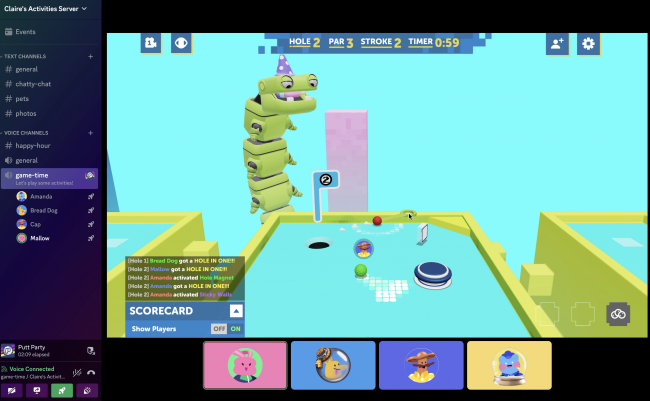
Disabling Game Activity Status Globally
If your goal is to hide your gaming activity from everyone, Discord allows you to do this globally. Here’s how to turn it off in 2025:
- Open Discord and Access Settings: Click the gear icon (⚙️) near your username in the bottom-left corner to access User Settings.
- Navigate to Activity Privacy: Under Activity Settings, find Activity Privacy.
- Toggle Off Display: Switch off “Display current activity as a status message”.
- Disable Automatic Sharing in Large Servers: Also, turn off “Share your activity status by default when joining large servers”.
After completing these steps, your current gaming activity will no longer be visible to any server or friend. This is the most straightforward method for total privacy.
Hiding Activity on Specific Servers
Sometimes, keep your game activity hidden only on certain servers while allowing it on others. Discord allows server-specific privacy adjustments.
- Right-Click the Server: In your server list, right-click on the server where you want to hide your activity.
- Select Privacy Settings: Choose Privacy Settings or Server Privacy Settings depending on your app version.
- Toggle Activity Status: Turn off Activity Status for that specific server.
This feature is useful for balancing Privacy with social interaction. You can still share your gaming activity with close friends while hiding it from large public servers.
Removing Specific Games from Your Activity Status
Sometimes, you can hide only certain games without turning off your overall activity. Discord lets you manage your game list manually:
- Access Registered Games: Go to User Settings → Activity Settings → Registered Games.
- Remove Unwanted Games: Hover over the game you want to hide and click the red “X”.
This removes the game from your status, though Discord may re-detect it the next time you run it. For permanent Privacy, combine this step with global activity status settings.

Clearing Your Recent Activity
If your activity has been visible for a while, you might want to clear your history. Discord allows you to clear all previously shown games:
- Go to Profile: Click your profile picture in the bottom-left corner and select Profile.
- Access the Activity Tab: Here, all your recent activities are listed.
- Click Clear Activity: This removes all previously displayed games from your status.
Clearing your activity helps reset your public Profile, ensuring no old gaming sessions are visible.
Disconnecting Third-Party Accounts
Many users connect Discord with platforms like Spotify, Xbox, PlayStation, or Steam. These integrations can also reveal what games or content you’re consuming. To enhance Privacy:
- Go to User Settings → Connections.
- Review Connected Accounts: Check which third-party apps are linked.
- Disconnect or Adjust Visibility: You can either disconnect the app entirely or adjust the sharing settings.
By managing connected accounts, you can prevent Discord from broadcasting activity from external platforms.
Understanding Limitations
Even with all privacy settings enabled, it’s essential to know Discord’s limitations:
- Game Detection: Discord may still detect games running on your system for internal purposes, even if they aren’t shared.
- Rich Presence Games: Some games may still attempt to share detailed information if integrated with Rich Presence.
- App Updates: Discord frequently updates, and privacy settings may reset or change after updates.
Being aware of these nuances helps you maintain better control over your online presence.
Tips for Maintaining Privacy
Beyond adjusting settings, here are practical tips for maintaining gaming privacy:
- Avoid Running Games While Using Public Servers: If Privacy is a priority, consider minimising gaming while connected to public servers.
- Regularly Review Settings: Discord may add new features, so periodically check Activity Privacy.
- Use Secondary Accounts: For streaming or public interaction, consider creating a separate Discord account.
These steps ensure a consistent, private experience without fully disconnecting from the platform.
Conclusion
Discord has never been easier to deal with. Privacy in 2025. Discord gives you the ability to conceal every bit of your gaming activity, individual games or activity on separate servers, depending on what you would prefer to do.
Knowing the detection systems, the possibility to control the Privacy of your activities, clear your history, and maintain control of the connections with third parties, you can be sure that you can play your favourite games without making your activity public.
Having a secret Discord presence does not imply that you are losing anything in terms of connection, but rather it is a question of what you want to provide and to whom.
It is possible to use this guide and follow the steps and instructions to have an opportunity to enjoy a more managed and personalised gaming experience, and keep up with the changes in Discord.
FAQs
Q1: How do you hide what game you’re playing on Discord?
Go to User Settings → Activity Privacy and toggle off “Display current activity as a status message” to hide your game activity from everyone.
Q2: How to prevent Discord from showing a specific game?
Under User Settings → Registered Games, hover over the game and click the red “X” to remove it from your activity status.
Q3: How do I stop Discord from showing what game I’m playing in 2025?
In 2025, open Activity Privacy in Discord settings and turn off activity status, ensuring your current game is no longer visible to friends or servers.
Q4: How to turn off game overlay on Discord?
Go to User Settings → Game Overlay and toggle off “Enable in-game overlay” to prevent Discord from displaying overlays while gaming.