
Wireless earbuds have become a necessity in everyday routine – and JLab is one of the hottest brands in the industry. However, it can be no more frustrating than taking out your earbuds and noticing that they do not work with your phone. It affects both iPhone users and Android users and is normally resolved through the appropriate measures.
In 2025, JLab added to the product range, including the JBuds Mini, Go Air Pop, and Epic Lab Edition, which all feature enhanced connectivity of Bluetooth 5.3. However, despite the technology, the connection may go dead because of pairing errors, old firmware, interference, or just an error during the previously set up.
This comprehensive troubleshooting will take you step by step through the practical solutions to troubleshoot earbuds produced by JLab that do not work with your phone, regardless of the model. At the end, your earbuds ought to be operating flawlessly again.
Why Won’t My JLab Earbuds Connect to My Phone?
JLab earbuds rely on stable Bluetooth signals to connect. If your earbuds won’t connect to your phone, it usually comes down to one of a few core issues:
- Previous pairing conflicts: The earbuds may still be linked to another device.
- Low battery: If either the case or the earbuds have less than 10% charge, pairing can fail.
- Outdated firmware: Older firmware can cause random disconnections or connection failures.
- Incorrect pairing mode: Not entering pairing mode properly often leads to connection errors.
- Bluetooth interference: Other active Bluetooth devices nearby may disrupt the signal.
The good news? Nearly 90% of connection issues with JLab earbuds can be solved without service or replacement — often in under 5 minutes.
Step-by-Step: How to Pair JLab Earbuds with iPhone & Android
Whether you’re using the compact JBuds Mini or the feature-packed Epic Lab Edition, the pairing steps remain simple in 2025. Follow these steps carefully to ensure a smooth connection:
For iPhone users:
- Make sure Bluetooth is turned ON in Settings > Bluetooth.
- Take both earbuds out of the charging case.
- Wait for one earbud to flash white and blue — this means it’s in pairing mode.
- On your iPhone, look for the JLab model name under “Other Devices.”
- Tap to connect. Once paired, you’ll see “Connected” next to the name.
For Android users:
- Open Settings > Connections > Bluetooth and turn Bluetooth ON.
- Remove both earbuds from the case.
- The indicator light should blink white and blue.
- Select the JLab model from the list of available devices.
- Tap Pair when prompted.
Pro Tip: If the earbuds don’t show up, place them back in the case, close the lid for 10 seconds, then repeat the steps.
This clean pairing process eliminates most connection issues before they escalate — especially for new users or after a firmware update.
Top 6 Reasons JLab Earbuds Are Not Pairing
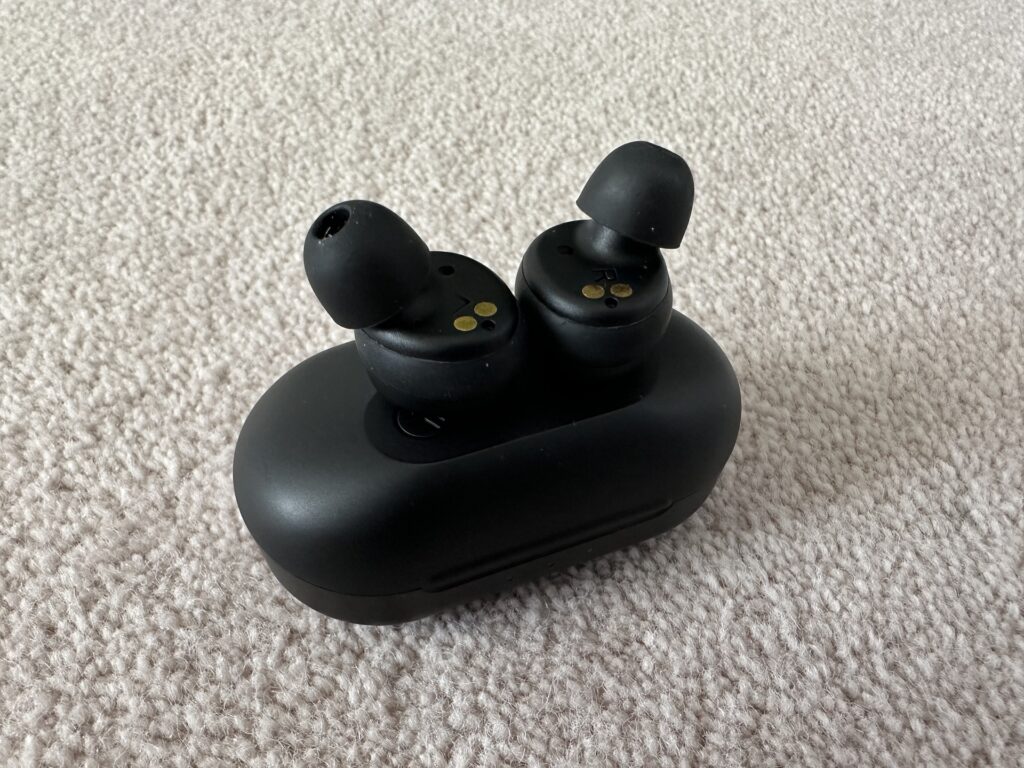
Even with correct pairing steps, connection failure can still happen. In 2025, the most common reasons behind JLab earbuds not pairing with a phone fall into six key categories:
- Low Battery Levels: If your earbuds or charging case drop below 10% battery, Bluetooth may not activate properly. Always charge both for at least 15–20 minutes before pairing.
- Previously Connected Devices: JLab earbuds can remember multiple devices. If they auto-connect to an old device nearby, they won’t show up on your new phone.
- Bluetooth Interference: Other Bluetooth accessories or Wi-Fi routers close by can interrupt the connection signal. Moving to a clean, interference-free zone often helps.
- Outdated Firmware: Older firmware can cause dropouts. The latest 2025 JLab updates fix many pairing bugs.
- Not in Pairing Mode: If the LED isn’t flashing white and blue, the earbuds aren’t in pairing mode. Restart the process.
- Phone Bluetooth Settings: Sometimes the issue isn’t the earbuds — it’s your phone. Restarting Bluetooth or toggling Aeroplane Mode can clear temporary glitches.
Expert Note: Over 70% of users fix their connection issue simply by disconnecting all other paired devices and resetting the earbuds.
How to Reset JLab Earbuds
A factory reset clears any saved pairing history and removes glitches that might be blocking your connection. JLab’s 7-tap reset works across most 2025 models.
General reset steps:
- Forget the earbuds from your phone’s Bluetooth settings.
- Place both earbuds in the charging case.
- Tap one earbud quickly 7 times until the light blinks blue three times.
- Repeat for the other earbud.
- Take them out of the case and wait for the white and blue flashing light.
- Reconnect them through your phone’s Bluetooth list.
Model Note: Some newer models, like Epic Lab Edition, may have slightly different sequences. Always check the official JLab manual or app for model-specific instructions.
This simple reset often solves pairing issues instantly — especially when multiple devices are involved.
Advanced Fixes: Clear Bluetooth Cache, Update JLab Firmware, Use the JLab App, and Network Resets
If the usual fixes don’t work, these advanced solutions can help restore a clean connection:
- Clear Bluetooth Cache (Android): Go to Settings > Apps > Bluetooth > Storage > Clear Cache. This refreshes your phone’s Bluetooth memory.
- Forget and Reconnect (iPhone): Tap the (i) icon beside the earbuds in Bluetooth settings, select Forget This Device, then pair again.
- Update Firmware: The JLab App 2025 offers OTA firmware updates that fix known bugs.
- Reset Network Settings: If all else fails, resetting network settings on your phone removes any corrupt Bluetooth pairing data.
Pro Tip: Keep your earbuds and phone software updated. This alone fixes most stubborn connection issues.
When to Contact JLab Support or Use Your Warranty
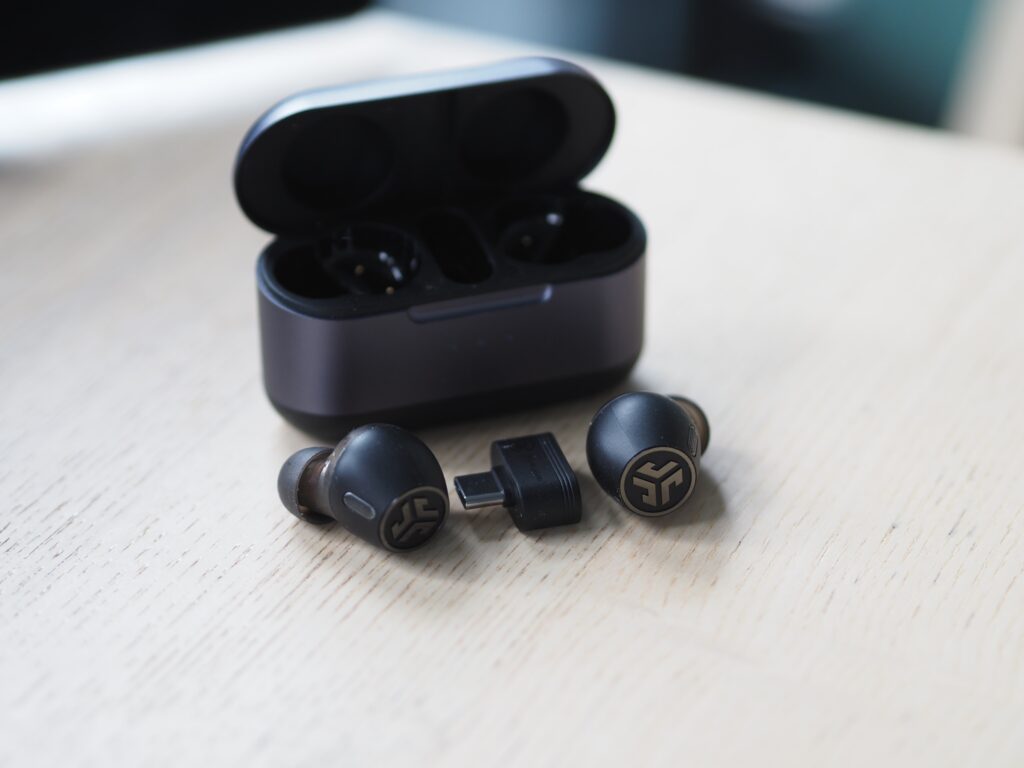
All the above have been tested, and your JLab earbuds are yet to connect, then it can be a hardware problem. JLab also provides a 2-year limited warranty on most earbuds in 2025.
You should contact JLab Support if:
- One earbud refuses to enter pairing mode.
- The LED lights no longer respond.
- Multiple devices fail to detect the earbuds.
- There’s visible damage or battery failure.
The JLab support team can assist in model-specific diagnostics or even replace the product in case it is required. The majority of claims take 5-7 business days to receive turnaround in 2025, so it is a quick solution when troubleshooting fails.
FAQs
Q: How do I reset my JLab earbuds?
A: Place both earbuds in the charging case, then tap each earbud 7 times until the LED flashes blue. This clears pairing history.
Remove them, wait for the white and blue flashing light, then reconnect to your phone.
This reset works for most 2025 JLab models.
Q: How do I make my JLab earbuds discoverable?
A: Take the earbuds out of the charging case and wait for one to flash white and blue, which signals pairing mode.
If it doesn’t, tap and hold the touch sensor for a few seconds.
Make sure Bluetooth is ON on your phone.
Your earbuds should now appear on the available devices list.
Q: Why are my earbuds not pairing?
A: Common reasons include low battery, pairing with another device, or outdated firmware.
Resetting the earbuds and clearing the Bluetooth cache often solves the issue.
Ensure they’re in pairing mode with flashing white and blue lights.
Move to a space with no Bluetooth interference.
Q: Does JLab work with Android?
A: Yes, all JLab earbuds are fully compatible with Android phones.
They use standard Bluetooth 5.0+ connections, making pairing quick and stable.
You can manage settings through the JLab App for Android.
Most models pair in under 30 seconds.